
Can I import contacts from a different system?
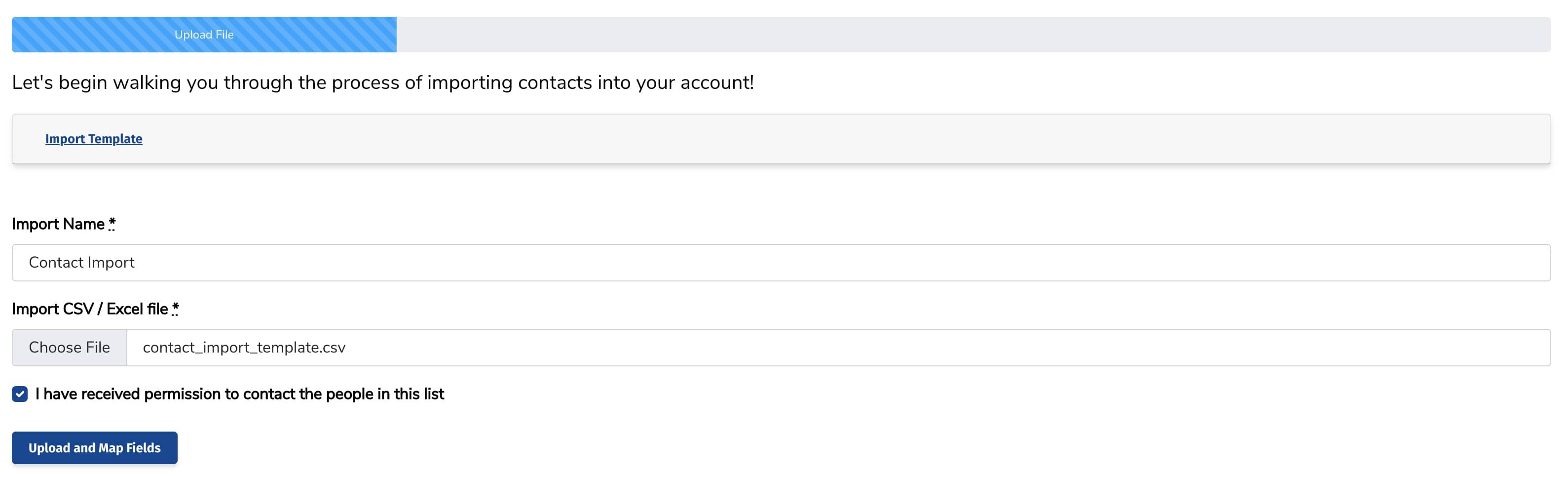
In your Boast account, navigate to the Contacts tab. In the top right corner, click Import. Click New Import.
- Upload an Excel/CSV file of contacts. We've provided an example file template, but your file does not need to match exactly. Click Upload and Map Fields.
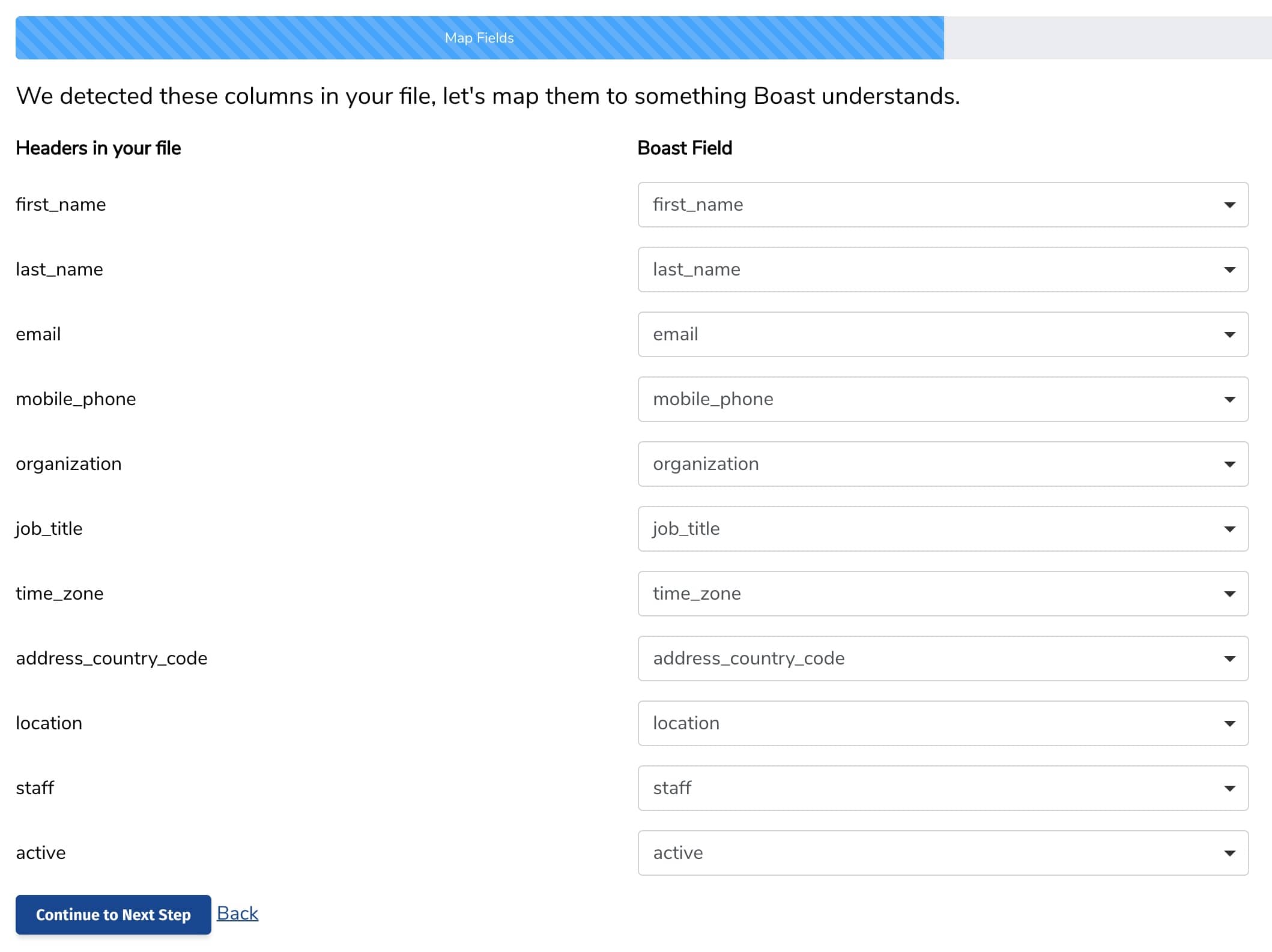
- Once you upload your file, you will be able to map the columns in your file to fields in Boast. Once you've mapped your fields, click Continue to Next Step.
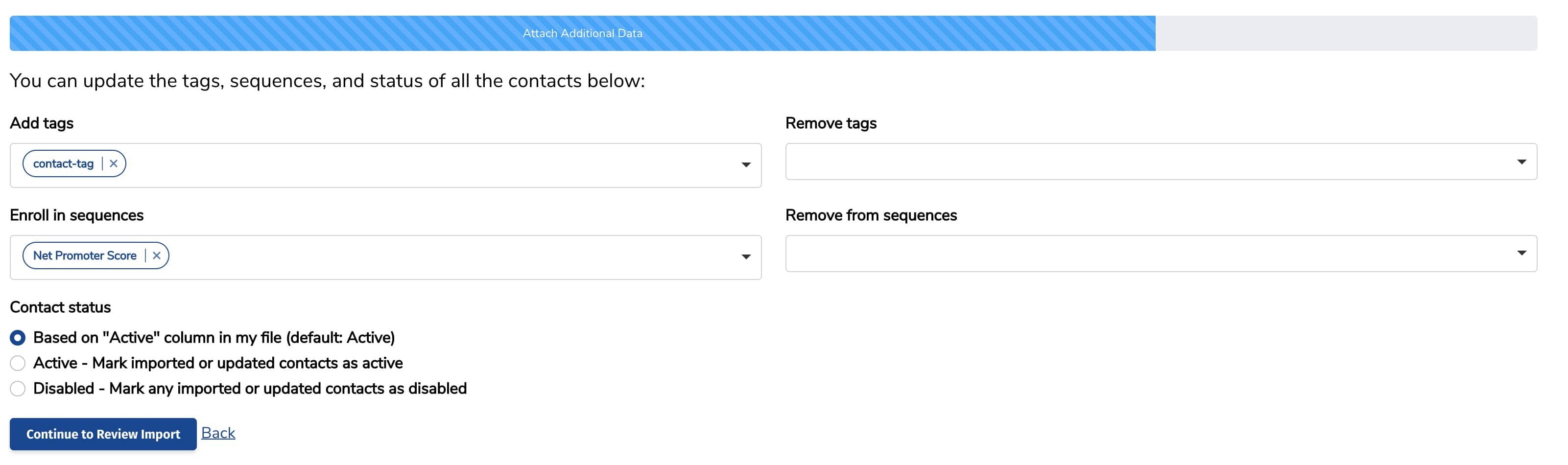
- Now you have the option to ad/remove tags, enroll/remove from sequences, and set the contact status. Once you're done, click Continue to Review Import.
- Review your import. Click Import X Contacts Now.

Still need help? Our support team answers by phone, email and chat, 9am–5pm EST.
Contact support