
How to create an SMS sequence
Enable SMS on Your Account
Before you can send any SMS messages through Boast, you first need to enable SMS at the account level. Follow these instructions to get set up. SMS messaging is available on Team and Premium plans.
Create/Edit Your Sequence
- Navigate to the Sequences screen
- Either create a new sequence or edit an existing one
Add an SMS Message
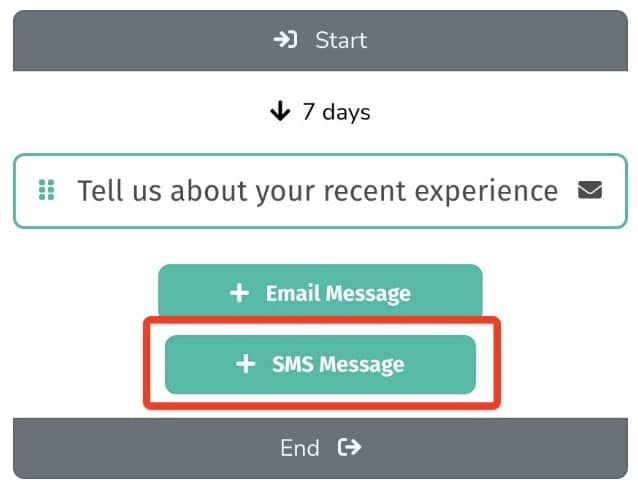
- Add a new SMS message by using the "+ SMS Message" button
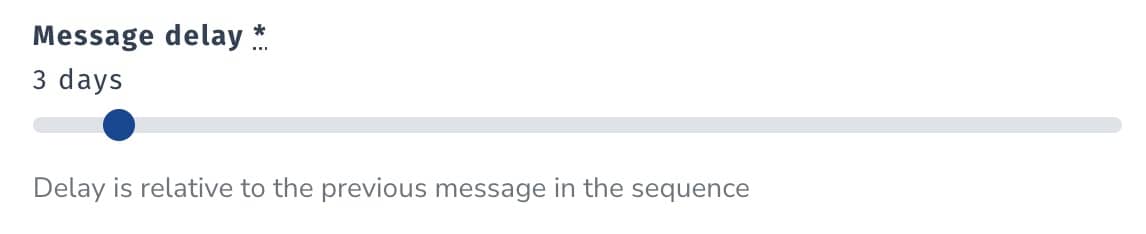
- Adjust the message delay if desired (message delay is relative to either the previous message in the sequence, or the beginning of the sequence if it is the first message)
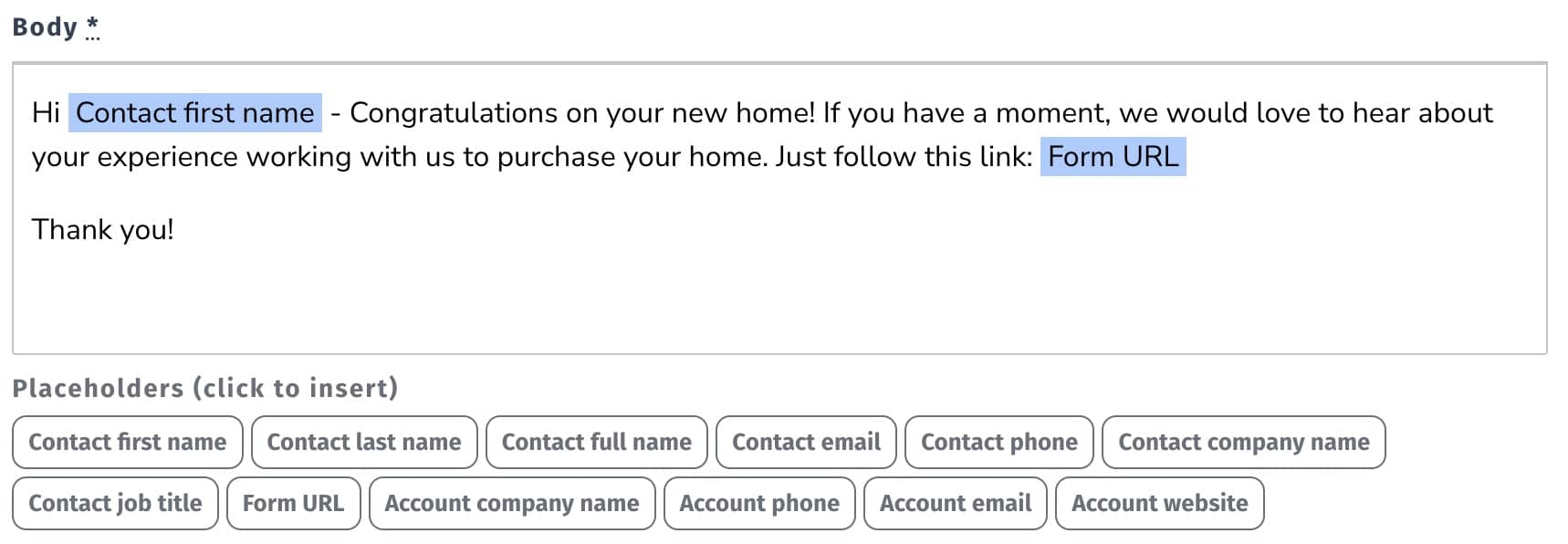
- Add your message, including any placeholders if desired.
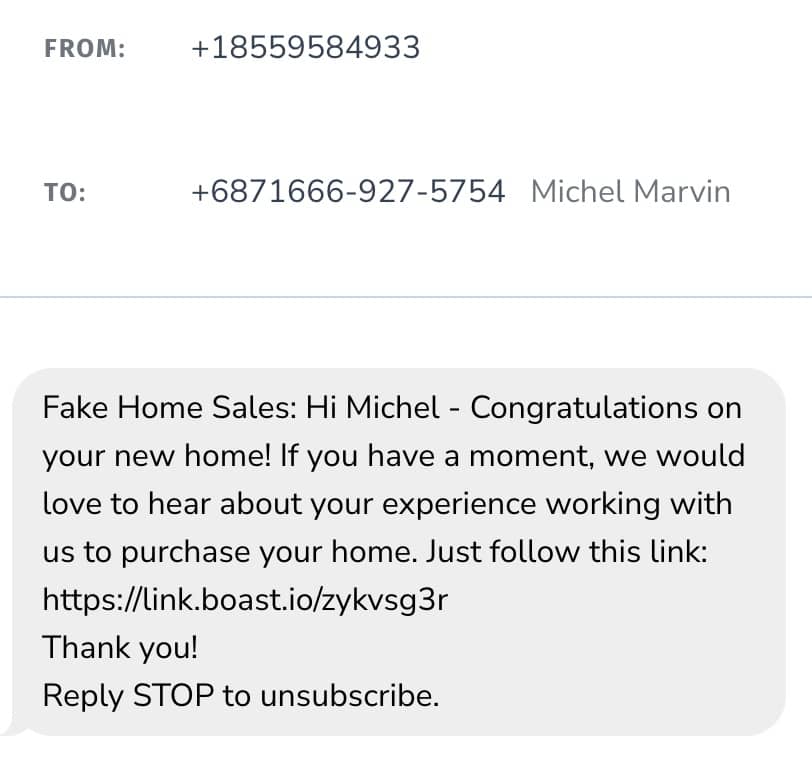
- You can preview your message using the "Preview SMS" button.
- Click "Save Message" to save your SMS message.

Enroll Contacts
- Navigate to the Enrollments screen
- Click the "Enroll Contact" button
- Enter in the contact information and click "Enroll Now"

Still need help? Our support team answers by phone, email and chat, 9am–5pm EST.
Contact support