
How to use discount codes in Boast
You can accomplish this using either the form thank you page or autoresponder.
Form Thank You Page
This will present the customer with the discount code directly after submitting a form response.
- Go to Forms in your Boast account
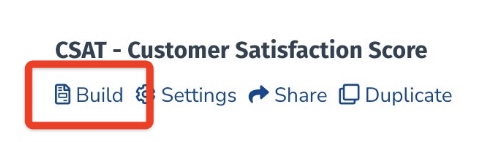
- Find the correct form and click Build
- Switch to the Thank You Page tab
- Add a Text Block
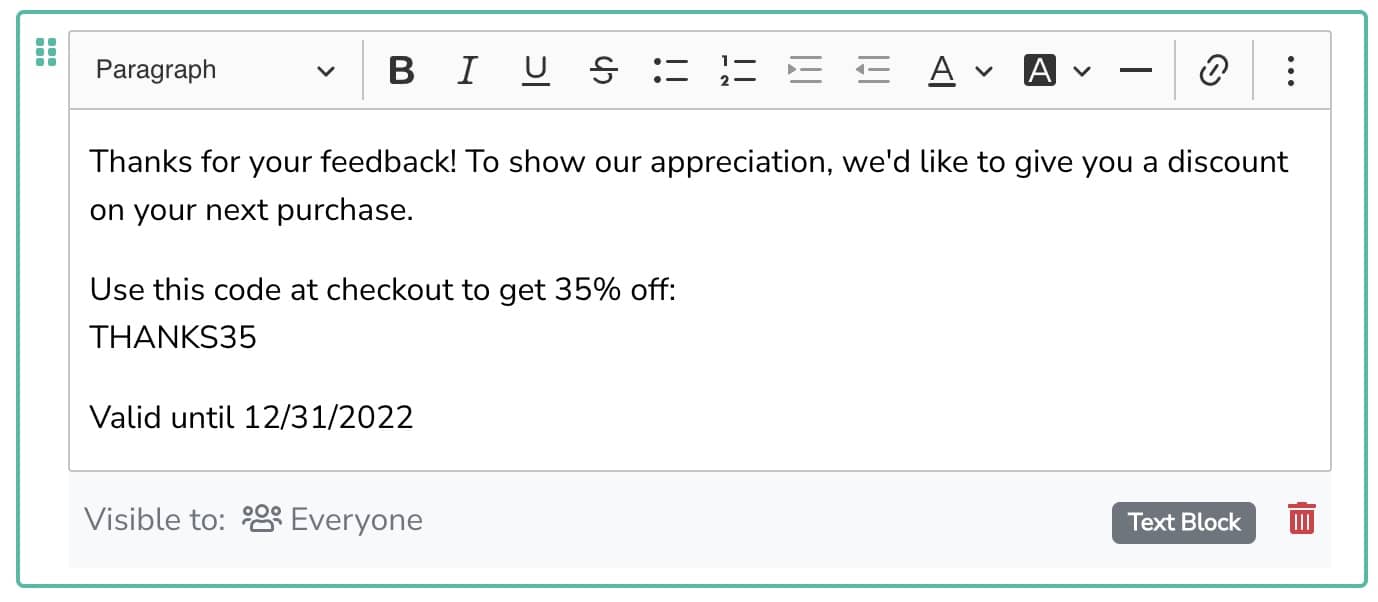
- Type in your thank you message, along with the discount code
- Save the form

Additional Resources: Customizing Form Thank You Messages Show a Different Form Thank You Message Based on Customer Rating
Form Autoresponder
This will present the customer with the discount code via email after submitting a form response.
- Go to Forms in your Boast account
- Find the correct form and click Settings
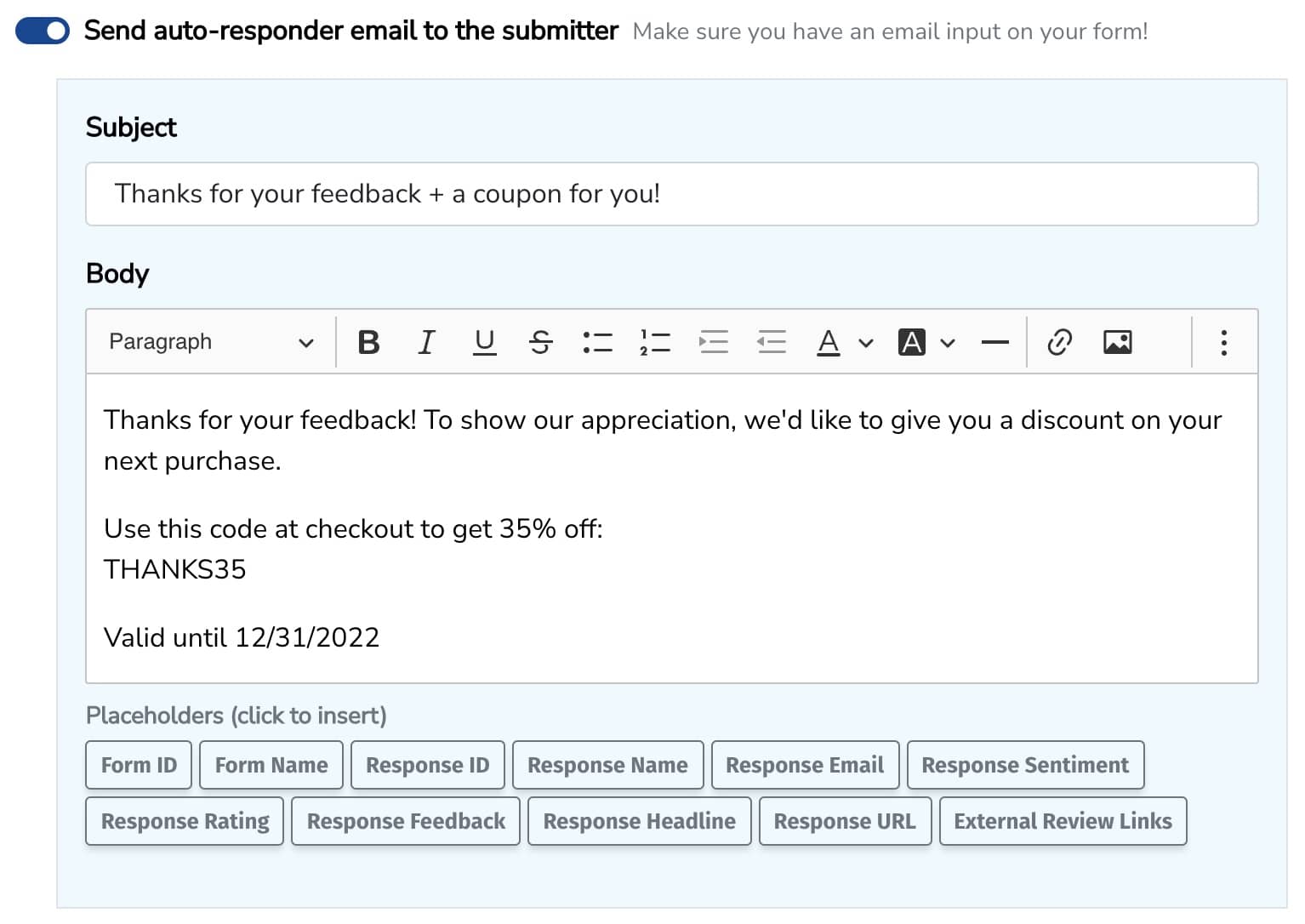
- If it isn't already, toggle on "Send auto-responder email to the submitter"
- Type in your thank you message, along with the discount code

Still need help? Our support team answers by phone, email and chat, 9am–5pm EST.
Contact support