
What widget options are available?
To create a new widget:
- Navigate to the Widgets tab.
- Click New Widget in the top right corner.
- Adjust the widget options as desired.

Widget Options
Name
Give your widget a title. This is for internal purposes only.

Layout
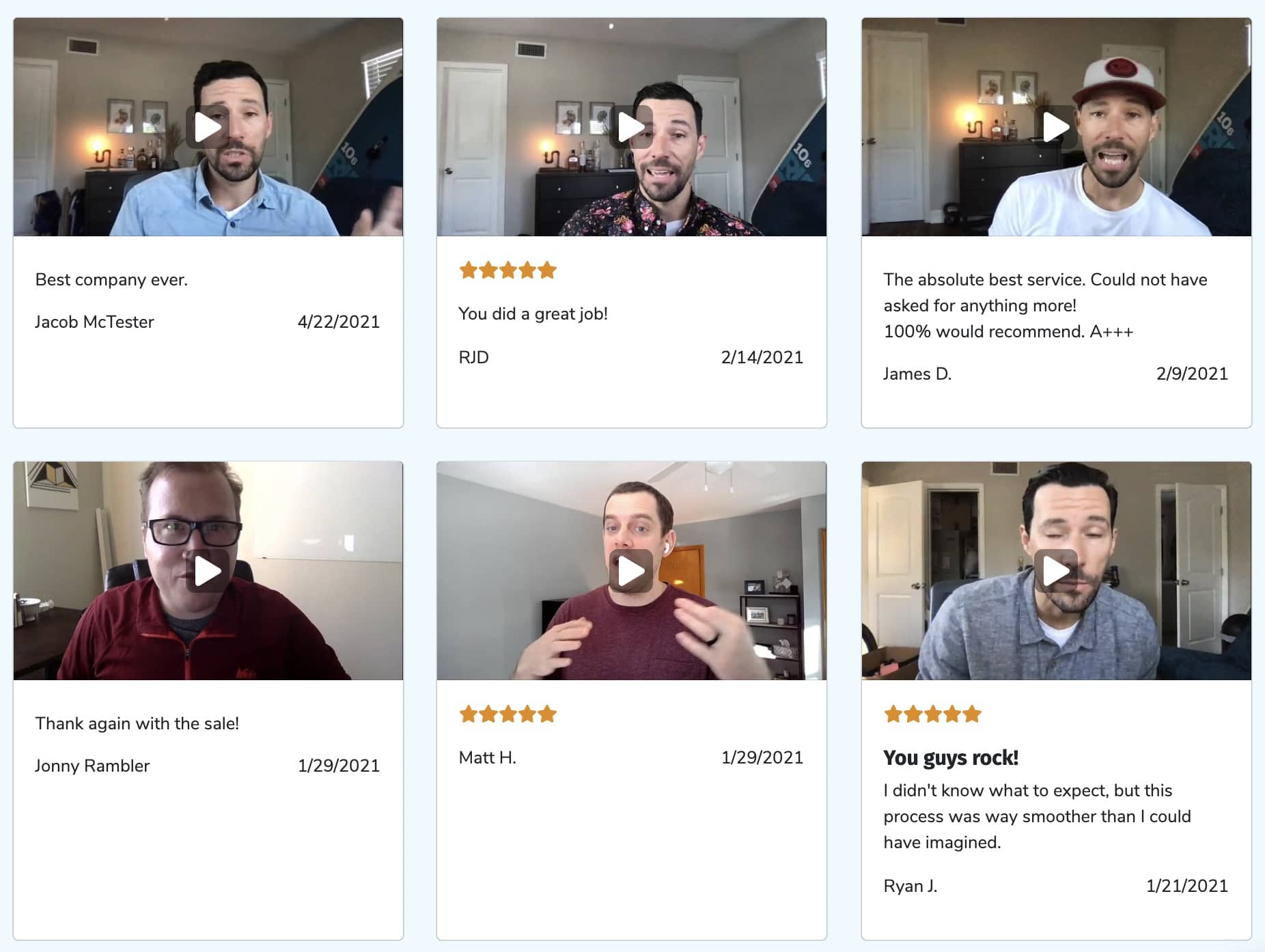
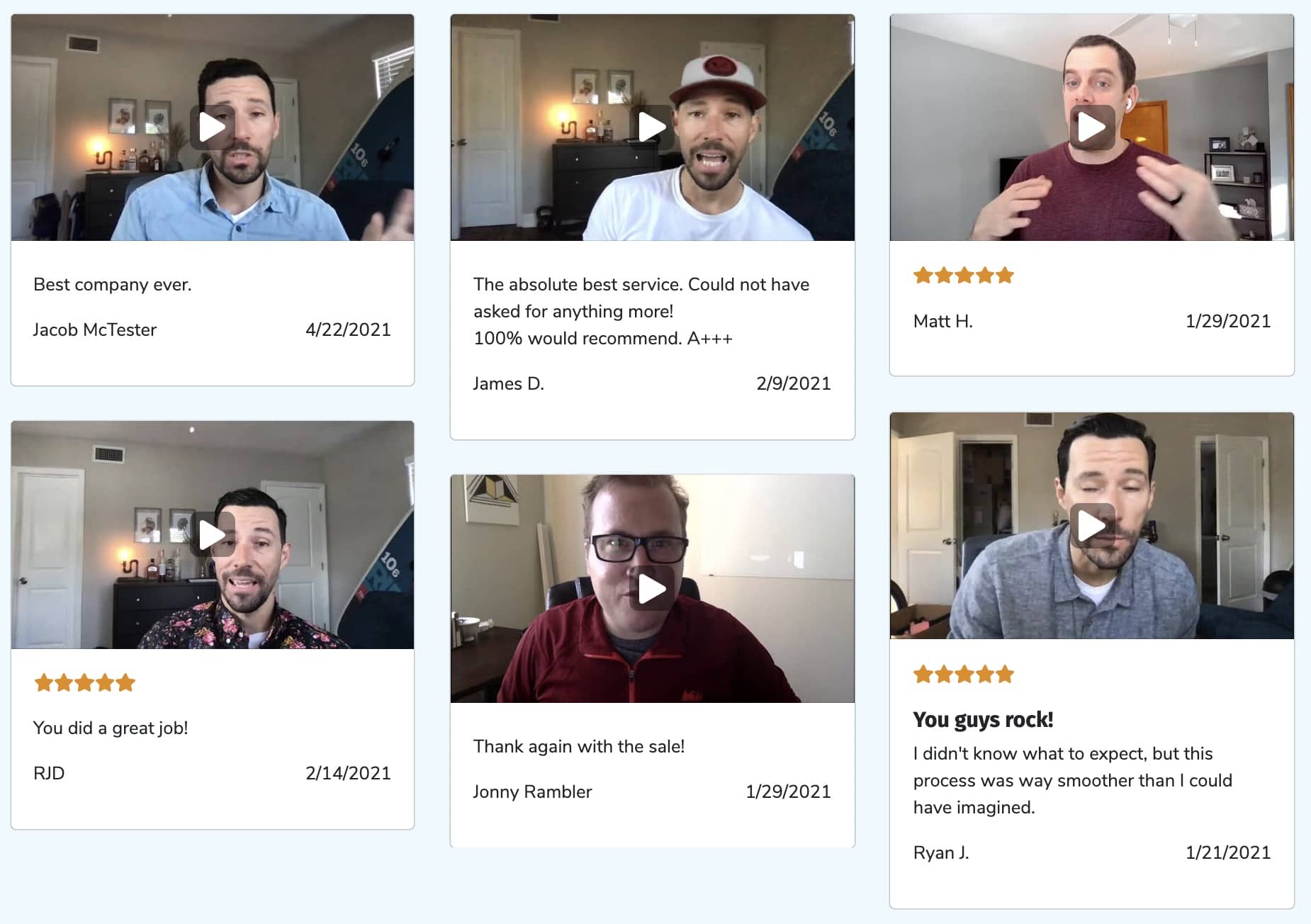
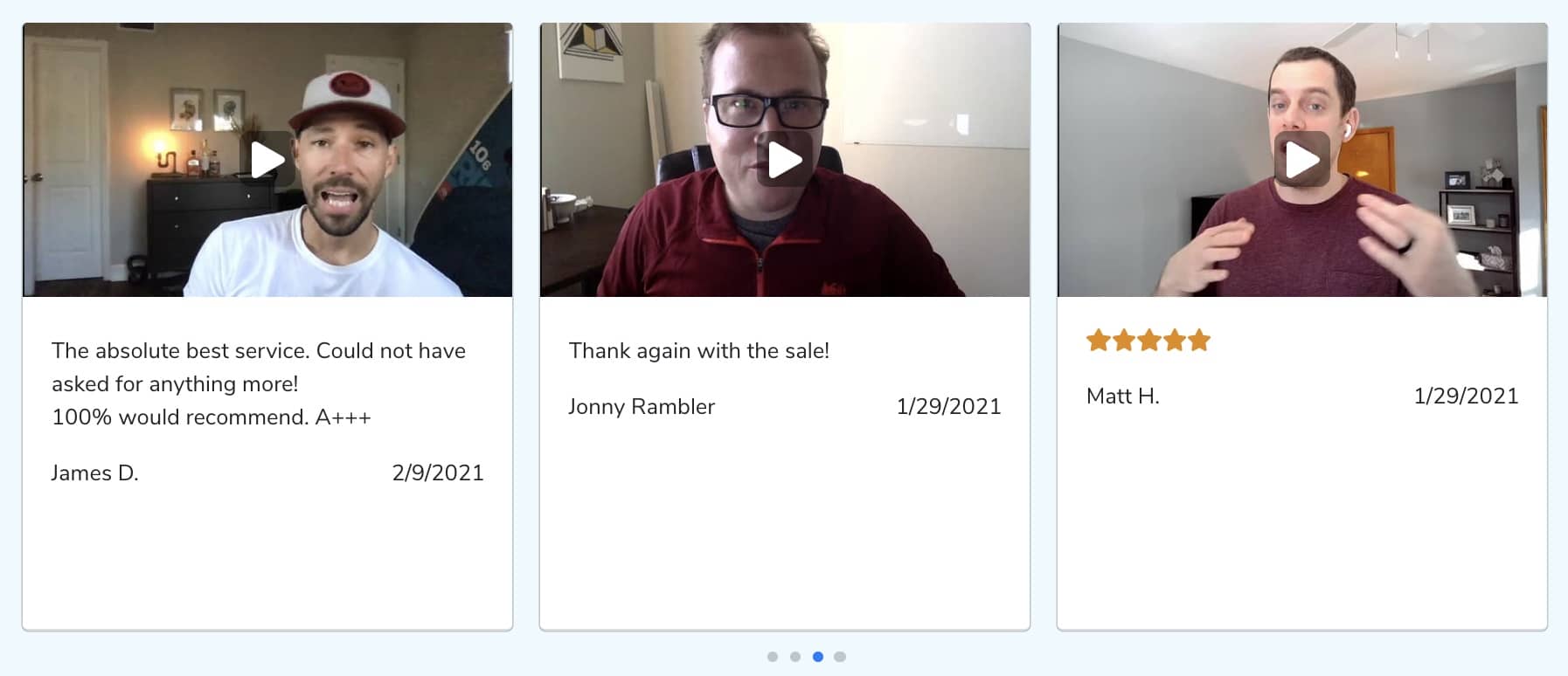
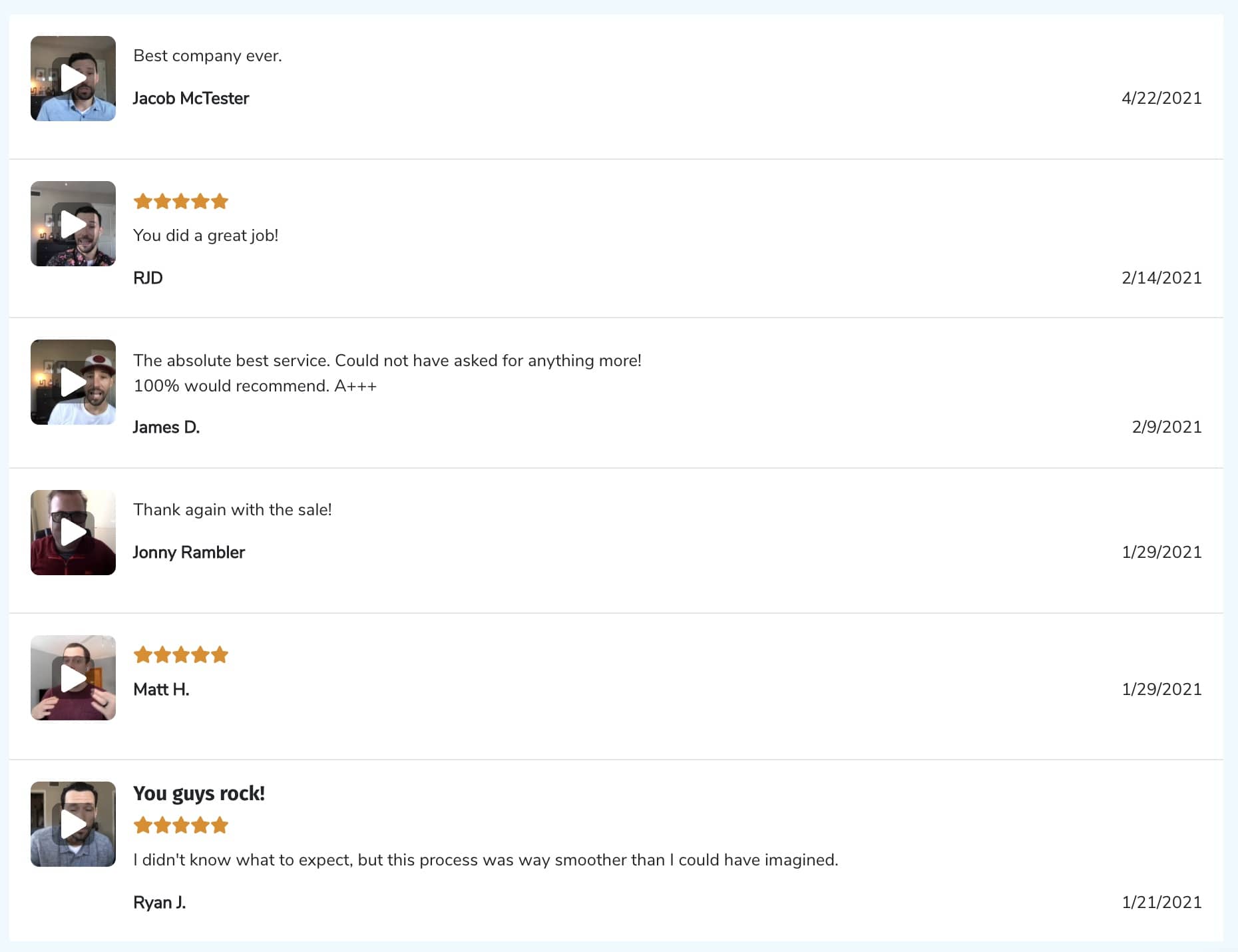
How your responses are displayed.

Options:
- Cards - Grid
- Cards - Full
- Cards - Carousel
- List
- Full Width Column
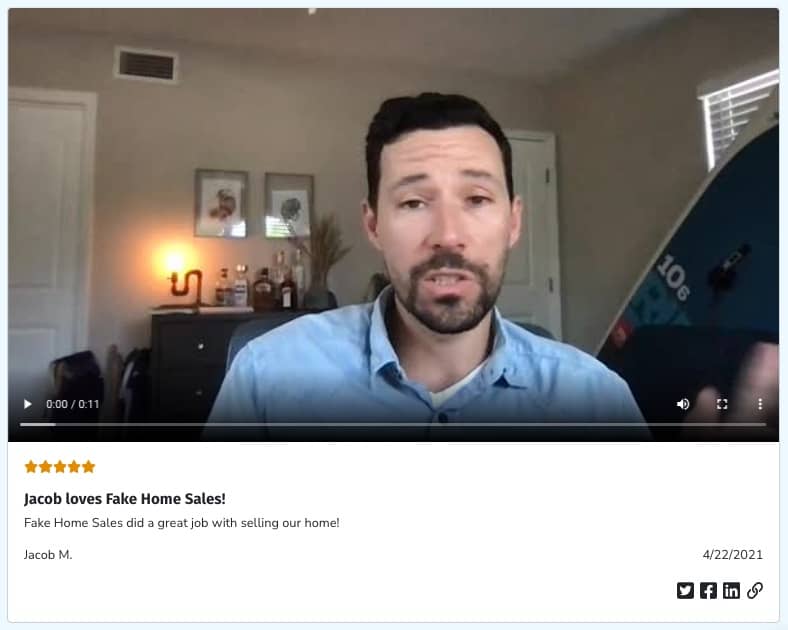
Display
Style
Change the colors of your widget.
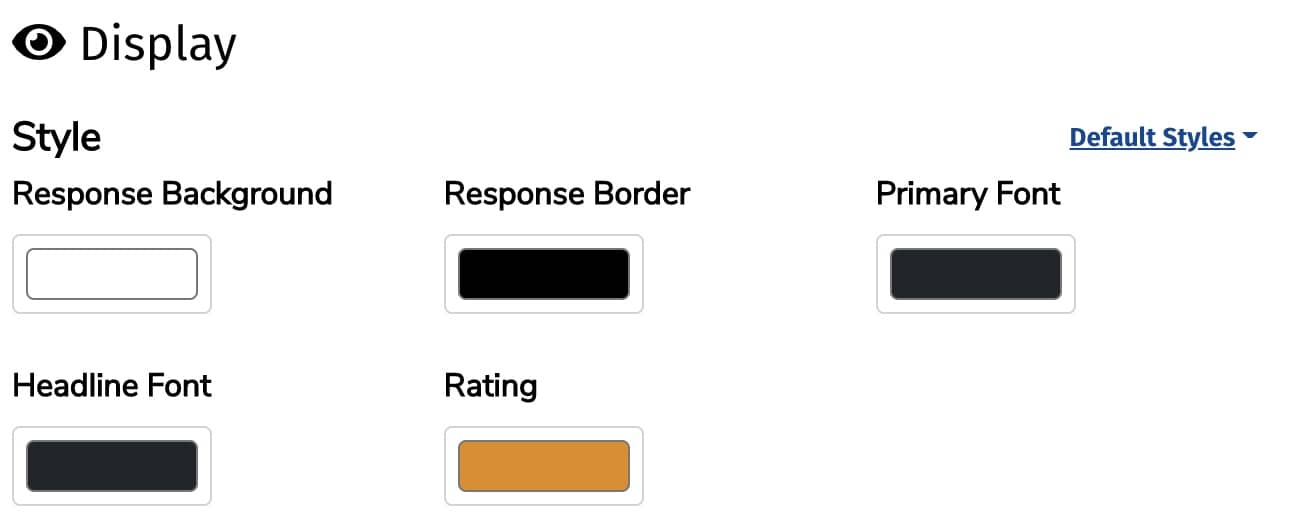
Colors you can change:
- Response Background
- Response Border
- Primary Font
- Headline Font
- Rating
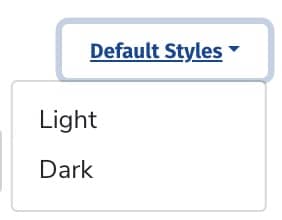
We also have two default styles available via the Default Styles dropdown - Light and Dark.
Display Fields
Choose what information you would like to include in your widget.
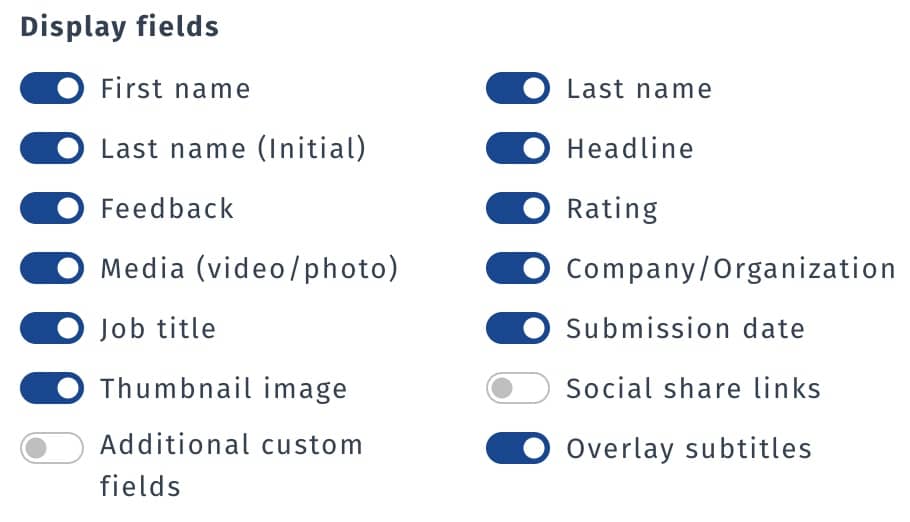
Available options:
- First Name
- Last Name
- Last Name (Initial)
- Headline
- Feedback
- Rating
- Media (video / photo)
- Company / Organization
- Job Title
- Submission Date
- Thumbnail (Preview) Image
- Social share links
- Additional custom fields
- Overlay subtitles
Order By
You can choose the order your responses are shown in.

Available options:
- Submission Date (most recent first)
- Rating (highest first)
- Weight (lightest first)
- Weight {heaviest first}
- Has Video
- Has Photo
- Random
Filters
Forms
Display responses from only a certain form or forms.

Locations
Display responses associated with a certain location.

Staff
Display responses associated with a certain staff member.

Sentiment
Negative and/or passive responses can be filtered out.

Options:
- All
- Promotors Only
- Promotors and Passives
Submission Date
Show responses collected within a certain timeframe.

Options:
- Anytime
- Last 14 Days
- Last 30 Days
- Last 90 Days
- Last 12 Months
Consent
We recommend only showing responses if the submitter has given you permission.

Options:
- All (including no consent)
- Full consent received
- Partial consent received
- Full or partial consent received
Media
Only show responses that have a certain media type.

Options:
- All (including no media)
- Any media (video, photo, or thumbnail)
- Only videos
- Only photos/thumbnails
- None (does not have a video, photo, or thumbnail)
Tags
Tags allow you to segment your responses. Use this option to only show responses with certain tags.

Max # of Responses to Show
Choose how many responses to show. The maximum allowed number is 100.

Still need help? Our support team answers by phone, email and chat, 9am–5pm EST.
Contact support